 PhoneWeb Notes
How to Open SNOW on a Phone, from the Home-Screen Web App to Account Limits
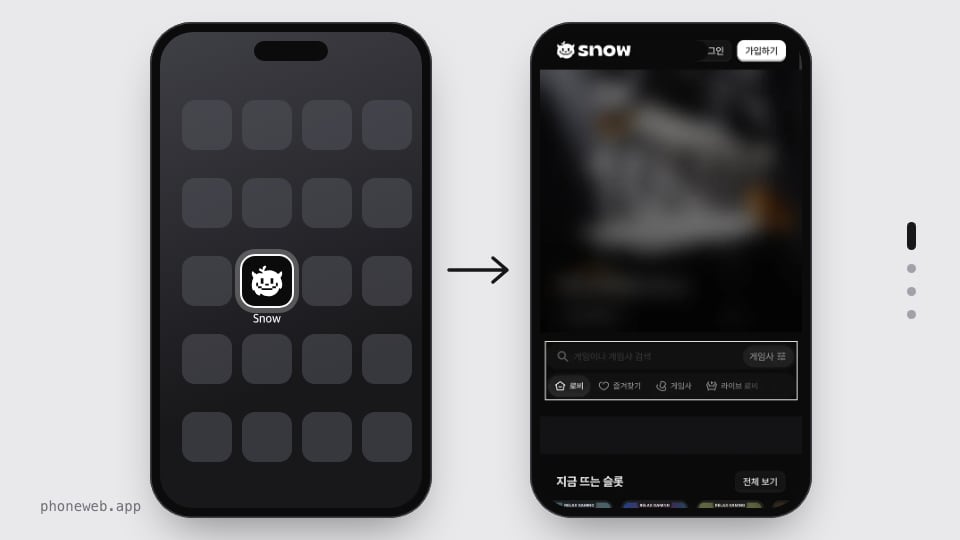
SNOW has no app in either app store. Instead, snsn1.com publishes a web-app manifest. Adding it to your home screen creates an icon called ‘Snow’ that opens in a window with no address bar. On 2 November 2026 we opened SNOW on a 390×844 phone screen. We recorded the bottom tabs, the menu panel and the login sheet. We also noted the deposit, ID-check and limit settings that are easiest to get wrong on a small screen.
At a glance
- Access
- Phone browser at snsn1.com/ko
- App-store app
- None; the manifest lists only the web app
- Home-screen icon
- Named ‘Snow’, start URL /?src=pwa
- Opens as
- standalone (no address bar)
- Bottom tabs
- Menu, Search, Casino, Bonus, Support
- Login
- A sheet that slides up; Telegram or username
- Two-factor
- A 6-digit authenticator code or an 8-digit recovery code
- KYC files
- JPG, JPEG, PNG, HEIC or PDF, up to 10 MB
What are you trying to do on your phone?
Opening snsn1.com in a phone browser
The safest way in is to type snsn1.com/ko into the address bar of Safari (iPhone) or Chrome (Android). Tapping a link inside a messenger opens its built-in browser. That browser shortens or hides the address, so you cannot read the whole domain. If you were sent a link, switch to ‘Open in browser’ first and check the address there.
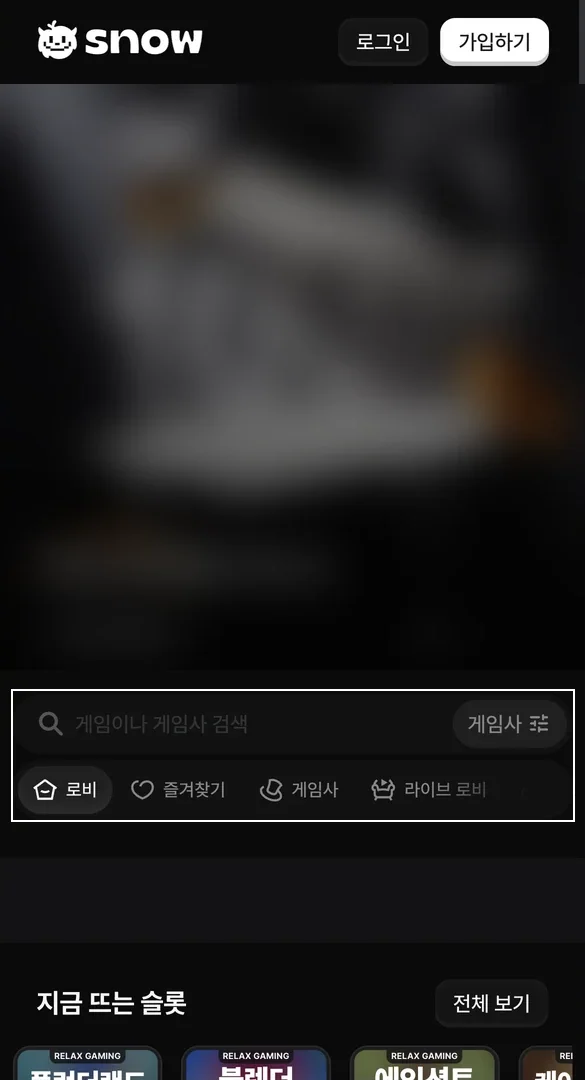
On a phone, the lobby runs in this order from the top:
- The SNOW logo with Log in and Sign up buttons
- A three-slide banner (the first reads ‘KRW 100,000 bonus’ and ‘Deposit now’)
- The ‘Search games or studios’ box with a studio filter
- Chips for Lobby, Favourites, Studios and Live lobbies
- A strip of recent wins, then ‘Trending slots’
We did not record the banner’s bonus conditions. The bonus terms page read ‘coming soon’ when we checked.
What adding SNOW to the home screen actually does
snsn1.com uses a manifest.webmanifest file to define how its home-screen icon looks and behaves. On 2 November 2026 it set the name ‘Snow’, the start URL /?src=pwa and display standalone. Background and theme colour were both #0a0a0a. Icons came at 192 and 512 pixels, plus a maskable 512-pixel icon. A 180×180 apple-touch-icon covers iPhone.
‘Standalone’ means the icon opens a full-screen, app-like window without the address bar or tabs. That is convenient, but in that window you cannot see which address you are on. So create the icon only after checking snsn1.com in the address bar. If SNOW’s address changes, delete the icon and create it again. Depending on the browser and OS version, it may instead open like a normal bookmark with the address bar visible.
iPhone Safari
- Type snsn1.com/ko into the Safari address bar and open it.
- Tap the Share button (at the bottom or next to the address bar).
- Choose ‘Add to Home Screen’.
- Check that the name field says ‘Snow’, then tap ‘Add’.
Android Chrome
- Type snsn1.com/ko into the Chrome address bar and open it.
- Tap the ⋮ menu at the top right.
- Choose ‘Add to Home screen’; some Chrome versions show ‘Install app’ instead.
- Tap ‘Add’ or ‘Install’ and a ‘Snow’ icon appears on the home screen.

Before you install a ‘SNOW app’ file
- When we checked, neither SNOW’s sidebar nor its footer had an app-download item. The manifest’s related_applications listed only the web app, with no app-store app.
- On Android, do not install an APK that asks you to allow ‘install unknown apps’. An installed app can read what is on screen and what you type.
- On iPhone, do not follow links that ask you to install a ‘configuration profile’. Putting a website on the home screen needs no profile.
- All you need is a browser and an address you checked yourself.
The five bottom tabs and what the Menu panel holds
On a 390-pixel-wide phone screen, the desktop’s left sidebar disappears. In its place, a ‘mobile menu’ bar of five tabs stays fixed at the bottom. The bar is about 52 pixels tall. The table shows where each tab goes.
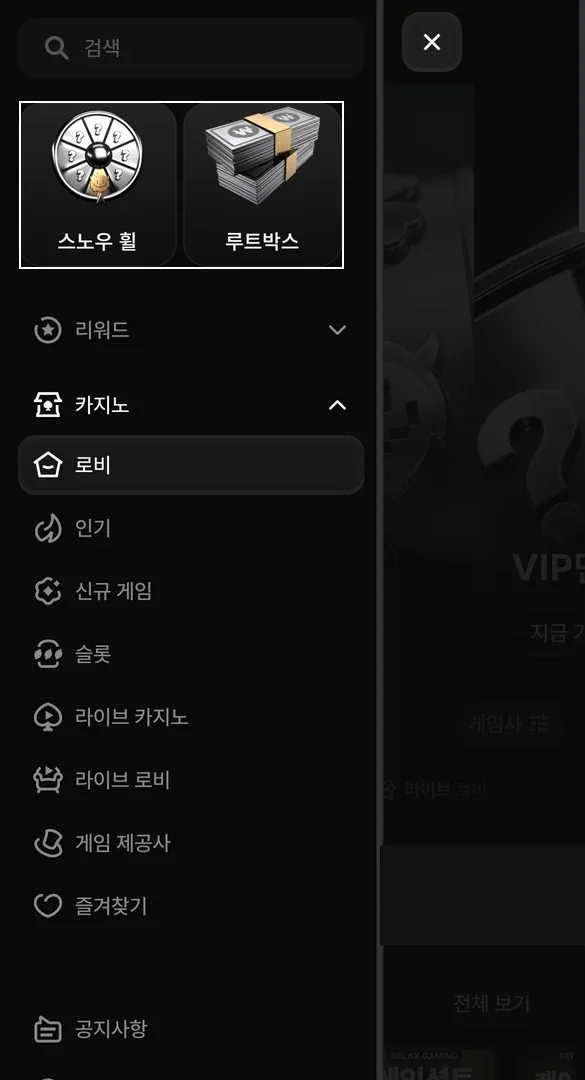
Tapping Menu slides a panel in from the left. At the top is a search box, with two tiles for Snow Wheel and Lootbox below it. Next come a collapsed ‘Rewards’ group and an expanded ‘Casino’ group. The Casino group lists Lobby, Popular, New games, Slots, Live casino, Live lobbies, Studios and Favourites. Notices sits underneath. The × at the top right of the panel closes it.
| Tab | What it opens |
|---|---|
| Menu | Opens the side menu |
| Search | Game and studio search |
| Casino | /ko/casino |
| Bonus | /ko/promotions |
| Support | /ko/support |
The login sheet that slides up from the bottom
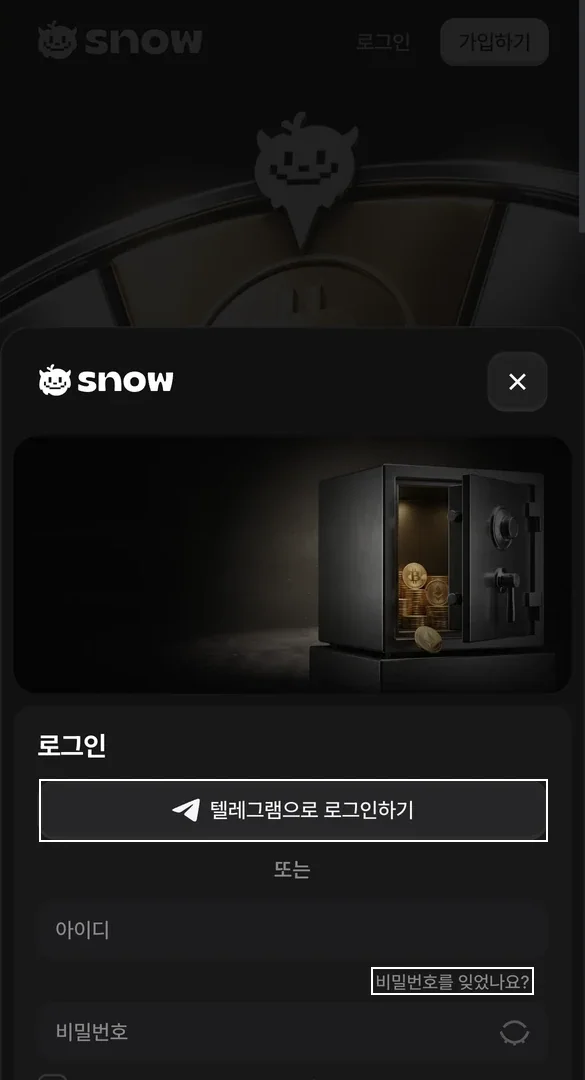
On a phone, tapping Log in at the top right does not open a new page. Instead, a sheet slides up from the bottom of the screen. From the top, it shows a ‘Log in with Telegram’ button and the word ‘or’. Below them are the username field, ‘Forgot your password?’ and the password field. The × at its top right closes it.
- Telegram link
Accounts linked to Telegram receive a 6-digit code from the bot. With Telegram on the same phone, the reset code arrives on the device you are using. - Two-factor
Logging in then needs a 6-digit authenticator code or an 8-digit recovery code. Before changing phones, move the authenticator app across and keep the recovery codes somewhere separate. - Password reset
According to the on-screen notice, withdrawals are held for 24 hours after a new password is set. Avoid resetting right before you plan to withdraw. - Never forward codes
Do not answer requests by messenger or text to send a verification code or password.
Phone screens video (50 s, 4 chapters)
It shows the home-screen steps, the mobile lobby, the menu panel and the login sheet. All are real 390×844 screens with English captions.
▶ Phone screens video (50 s, 4 chapters)A checklist before sending crypto from a phone
On a small screen, mistakes happen while switching apps to move an address. The steps below follow the deposit window as it opened on a phone. The table after them follows Articles 4 to 6 of the terms. We did not send any funds, so ask through the 1:1 enquiry whether deposits are being processed before you send.
Five steps in the deposit window
- Tap Deposit at the top right, then the Crypto tab. The note reads ‘Please check the coin and network you are depositing’.
- Pick the coin, then the network, and tap ‘Show deposit address’.
- Copy the whole address with the copy button. Long-pressing to select part of it can drop characters.
- Switch to your wallet or exchange app and choose the same coin and the same network. Paste the address, then compare its first and last four characters with SNOW’s screen.
- After sending, screenshot the transaction details in your wallet app (the screen that shows the TxID). If the balance is slow to update, that screenshot can go straight into the 1:1 enquiry.
What the terms say about deposits and withdrawals
| What to check | Basis | On a phone |
|---|---|---|
| Coin and network match | The coin and network pickers in the deposit window | Wallet apps may label the same network differently (e.g. TRC20 vs Tron), so compare the labels |
| Wagering before withdrawal | Deposits must be wagered at least once before withdrawal (Art. 5, anti-money-laundering) | You cannot withdraw straight after depositing |
| When KYC is asked for | KYC is requested on first bank use, when cumulative deposits and withdrawals reach about USD 2,000, or on unusual activity (Art. 4) | Have an ID photo ready before first using a bank transfer |
| Withdrawal time and fees | Target processing: crypto within 1 hour, bank within 1 business day (Art. 6); No withdrawal fee from the company; crypto network fees are paid by the member (Art. 6) | Crypto network fees are yours to pay |
If the balance is slow to update, see Keeping records for support. It lists the rules to check before writing and how to capture the screen.
Sending ID photos for KYC from a phone
The ID-check window accepts JPG, JPEG, PNG, HEIC or PDF, up to 10 MB. HEIC, the iPhone camera’s default format, is on the list, so photos can go up unconverted. Under Article 4 of the terms, KYC is requested in three cases. They are the first bank transfer, cumulative deposits and withdrawals reaching about USD 2,000, and unusual activity.
You must be 19 or older and of legal age where you live (Article 2). A few habits save you from reshooting:
- Get all four corners of the ID in the frame.
- Tilt the card so glare does not wash out the text.
- If the file is over 10 MB, lower the camera resolution or retake the original instead of using a screenshot.
- Don’t upload the same document repeatedly while you wait for a result.
Uploading ID photos from a phone covers the rest step by step. It explains checking format and size, removing the location from the photo and scanning to PDF.
Setting limits on the phone and in the SNOW account
Limits are easier to keep when they sit on both the phone and the account rather than on willpower alone. The account side follows Article 10 of SNOW’s terms. The phone side follows Apple and Google help pages read on 2 November 2026. Menu names vary a little by OS version.
| Where | What | When it applies or lifts |
|---|---|---|
| SNOW account (terms Art. 10) | Deposit, wager and loss limits | Lowering applies at once; raising or removing after 24 hours |
| SNOW account (terms Art. 10) | Break of 1, 7, 30 or 90 days | Blocks deposits, games and bonuses (withdrawals only); cannot be shortened |
| SNOW account (terms Art. 10) | Self-exclusion: 6 months, 1 year, 5 years or permanent | Applies at once; cannot be cancelled; permanent is irreversible |
| iPhone | Screen Time › app and website limits, with snsn1.com added | A block screen once the time is used |
| Android | Digital Wellbeing › app timer on Chrome | The timer resets at midnight |
- Raising a limit takes 24 hours, which stops a limit being lifted on impulse.
- During a break you can only withdraw, and the break cannot be shortened, so start with a short one.
- If you keep wanting to lift your limits, try Gambling Therapy (gamblingtherapy.org). Its free online support works in a phone browser.
Setting phone limits goes further, step by step. It covers the Screen Time passcode, blocking the site outright and clearing the home-screen icon and alerts.
What a phone VPN does not change under the law
Article 2 of SNOW’s terms (version 2026-10-18.4) bars use where online casinos are illegal. It also says accounts that mask their location with a VPN will be suspended. Connecting with a VPN app switched on can fall under that clause.
For anyone living in Korea, Criminal Act Article 246 applies whether or not a VPN is on (law.go.kr). Changing the location your phone reports does not change who is liable. Elsewhere, check your own country’s rules first.
Questions about SNOW on a phone
Is there a SNOW app?
Not in the app stores (checked 2 Nov 2026). The manifest on snsn1.com lists only the web app. Adding it to the home screen creates an icon called ‘Snow’.
Does the home-screen icon hide the address bar?
It can: the manifest sets display to standalone, so it may open without an address bar. Create the icon after checking the address, and recreate it if the address changes.
What are the tabs at the bottom of the phone screen?
Menu, Search, Casino, Bonus and Support. Snow Wheel and Lootbox sit at the top of the Menu panel.
Can I use an iPhone photo (HEIC) for KYC?
Yes. The accepted formats are JPG, JPEG, PNG, HEIC and PDF, up to 10 MB. So HEIC goes up as it is.
Does resetting my password block withdrawals?
According to the on-screen notice, withdrawals are held for 24 hours after a new password is set.
How can I cut back on my phone?
In the account, Article 10 of the terms offers deposit, wager and loss limits. It also offers breaks of 1, 7, 30 or 90 days and self-exclusion. On the phone: Screen Time or a Digital Wellbeing app timer.
How we checked, and the limits
- SNOW screens: snsn1.com/ko opened at 390×844 (3× scale), logged out, on 2 Nov 2026 KST. We checked the lobby, Menu panel, login sheet and bottom tabs.
- Web-app settings: read directly from snsn1.com/manifest.webmanifest and the page’s apple-touch-icon tag (2 Nov 2026)
- Deposit and ID wording: notes in the deposit and ID-check windows. Terms: version 2026-10-18.4, Articles 2, 4, 5, 6 and 10.
- Phone settings: three help pages. Apple’s ‘Set up Screen Time for yourself on iPhone’, Chrome Help (web apps on Android) and Android’s Digital Wellbeing help.
- Not checked: whether deposits and withdrawals are actually processed, or the bonus terms (‘coming soon’). Icon behaviour across iOS and Android versions was not compared either.
- Written for adult readers; every screen was checked logged out.